


Time tracking is one of those things we all know is important but almost no one enjoys. It matters for billing accuracy and delivery transparency, but completing this task is rarely the highlight of anyone’s day.
That’s why I decided to use Microsoft Copilot inside Outlook to make this process faster, more accurate, and far less mentally draining. I use AI to pull together, analyze, and summarize the information I already have so I can confidently complete my timesheets in mere minutes.
I am sharing this personal workflow experiment in case it sparks ideas for how you might use Copilot in your own day-to-day work.
Why Time Tracking Felt Needlessly Hard
My Outlook calendar is the most honest record of where my time really goes. Here, I enter every single meeting, internal conversation, client call, and focused work block. The challenge is translating that reality into consolidated, coded time entries without replaying my entire day in my head.
Before using Copilot, this meant manually scanning meetings, doing mental math, double checking categories, and hoping I did not miss or overlap anything. It worked, but it stole precious energy at the end of my day.
The Copilot Shift That Simplified My Process
I use Outlook category labels (Outlook Settings > Accounts > Categories) to color code my day. Internal work, specific client work, onboarding, administration, and similar buckets all have their own labels. I genuinely enjoy scanning my colorfully tagged calendar in the morning and instantly knowing whether I am heading into a day of internal meetings, getting fired up for a client kick-off, or finally getting to that time I carved out for a passion project.
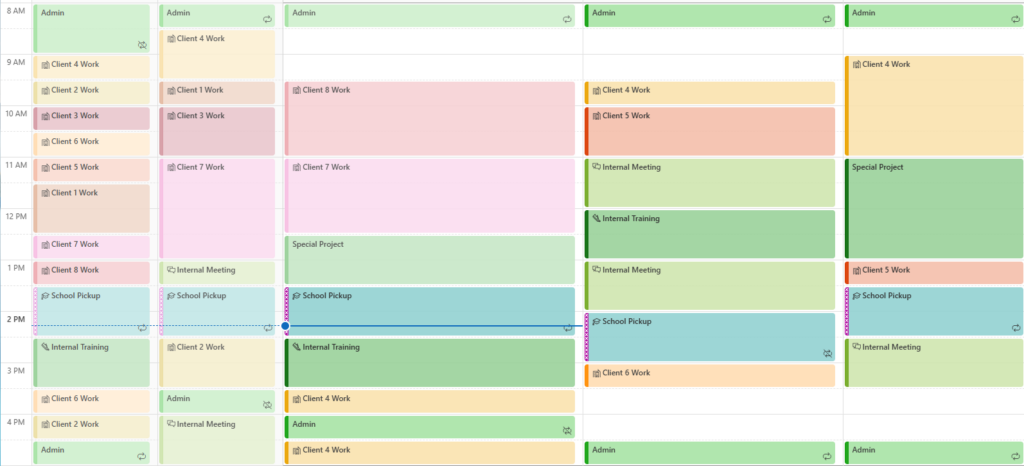
My lightbulb moment came when I realized that I already categorize my work in a way Copilot can understand and that aligns with our time entry codes in Microsoft Project Operations.
Once I connected my established system to Copilot and time entry, everything fell neatly into place.
Using the Outlook Copilot pane and calendar context, I now ask Copilot to look at activities booked on a specific day. I have it calculate scheduled duration in 15-minute increments, group everything by the categories applied that day, and present the results in a tidy little summary.
The output gives me exactly what I need: a categorized breakdown of my day, totals per category, visibility into any overlaps or mislabeling, and a concise 250-character-or-less summary. I can then drop that summary directly into the notes field of our formal system, which then flows through to client invoices.
On a typical day, I run the prompt once I wrap up work, review the category totals, scan the detailed breakdown, and make any quick corrections. Because the data comes straight from my Outlook calendar and my own labels, verification is fast and intuitive.
There is no guesswork and no Monday morning scramble to remember what happened last week.
Results So Far with Copilot in Outlook
With Copilot, it feels like I am winning daily.
Time entry is fast. Updating my timecard daily takes one to two minutes.
Accuracy is higher. It is easy to spot overlaps, missing categories, or mislabeled meetings. When I make my daily entries, I know what I am entering is defensible and consistent.
Manual effort is almost nonexistent. This is, unapologetically, this project manager’s way to win the battle against Parkinson’s Law: “Work expands so as to fill the time available for its completion.”
Visibility is complete. Without scribbled lists or extra reporting, I can clearly see how I spent my time.
My favorite part is the feedback loop. I plan more intentionally instead of booking reactively.
Why This Matters Beyond Daily Time Entry
This experiment reinforced something bigger about Microsoft Copilot for me. The real value is not automation for its own sake. It is using AI to remove small, persistent sources of friction that slow me down and distract me from delivering great work.
Copilot provides the gift of the very time I am tracking. A brief, structured summary of my day makes formal time entry painless, leaving more time for meaningful work.
As a bonus, I wrap up each week by asking Copilot to use the same calendar data to identify opportunities to work more efficiently. It helps me better prioritize my time and spot anything I am not doing now that could set me up for success the next week.
I also use Copilot to uncover opportunities to take on new projects, batch activities, protect prime focus time, and proactively manage my workload.
Outlook already knows where my time goes. Copilot helps me ask better questions of that data and get answers in a way that fits naturally into how I work.
Try This Quick Tip
Even if you don’t use Outlook Categories, try this tip: Ask Copilot to play the role of a Capacity & Delivery Strategist and review your day or week for smarter prioritization. Ask it to find opportunities to focus on the work that matters most.
If you tried this tip, what surprised you about it? What would you change about your typical day?
If this sparks ideas or questions about how Copilot could fit into your own workflows, I would love to hear them. The best part of experimenting with tools like this is sharing what works and learning from each other.
By the way, this article was written the same way I work every day: By me, with a little help from Copilot.