

Have you ever wanted to or needed to display a Sales Order Processing (SOP) report, or any other report created in Smartlist Builder, with a negative amount? In the below example used with the Sales Order Processing module, the user wants return documents to show as negatives and sales to display as positive amounts.
It is easy to create a calculated field or set the field options to do that.
- First, open Smartlist Builder.
- Second, select the table the column is in
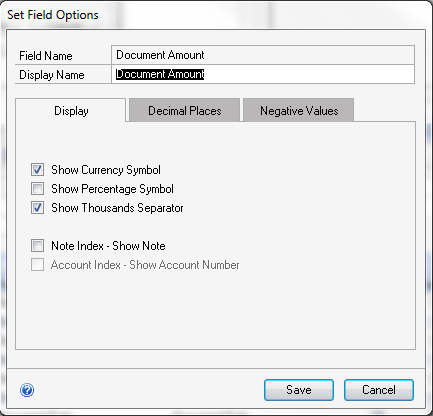
- Third, and finally highlight that column and click the expansion arrow next to the Display Name. You should see the window below:
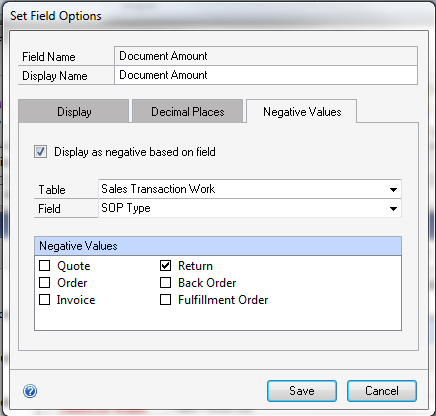
Select the Negative Values tab. Check the ‘Display as negative based on field’ checkbox. In the Tables drop down list, select a table that has the column ‘SOP Type’ in it. Select ‘SOP Type’ as the field. In the Negative Values area, check Return. See below:
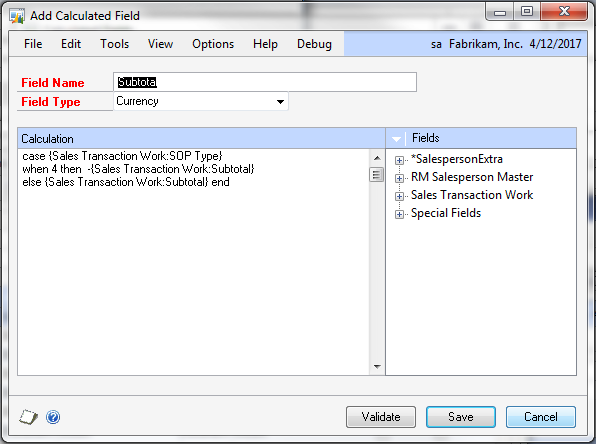
Displaying negative amounts can be done using a calculated field as well. On the main SmartList Builder screen, click the Calculations button. On the Calculated Fields screen, click the + button to create a new Calculated Field. The screen shot below shows how to display the Sales Transaction Header field Subtotal as a negative amount for a return, and positive for every other document.
I hope this example is useful to you. Please feel free to reach out to us for support should you need help completing your display of negative value fields.